Oracle Employee Self-Service Login
iRecruitment Account Help
We highly recommend completing any tasks in iRecruitment on a computer (desktop or laptop) instead of a mobile device like a phone or tablet. The recommended browser for Oracle related applications like iRecruitment is Mozilla Firefox. Employment candidates can reset their account password in iRecruitment by using the Forgot password link. This will initiate a password reset email to go to the email account used. Please be advised that it can take a few minutes for password reset emails to arrive and multiple attempts can cause issues. The reset emails can sometimes be found in your spam or junk email folder. You can manually check those folders or use your email search feature. Try typing in "workflow" or "Oracle" in the search box.
If you have waited for awhile and still have not received the reset email, please email password@pgcps.org. Again, a response can take a few minutes, so please don't send more than one request. Multiple emails can delay resolution of your issue.
Still Need Help? Send a Password Reset Request
Note: If you have ever worked for PGCPS your personal iRecruitment account was merged into your PGCPS account. If you are trying to return as a PGCPS employee you should use your old pgcps.org email account to access Oracle and apply through the employee iRecruitment portal.
Follow these PGCPS account management options to access your account. If you do not have access to the account management options listed due to length of time since last employment with us, please contact the Employee IT Service Desk at 301-386-1549 for assistance.
Please wait at least 30 minutes to try and access Oracle after resetting your password in order to allow the various account management servers to synchronize.
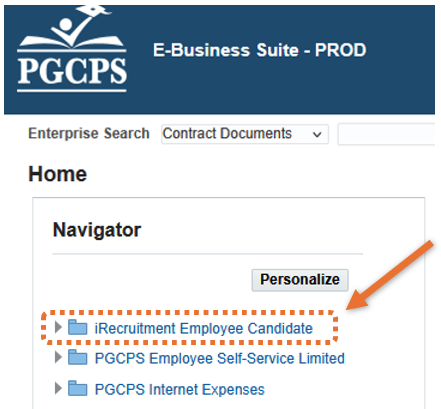
Once you are in your account, use the iRecruitment link on the left.